14 days free+30 days on usAfter your first 20 stamps · no card
For the price of 6 coffees a month
Get started →
→


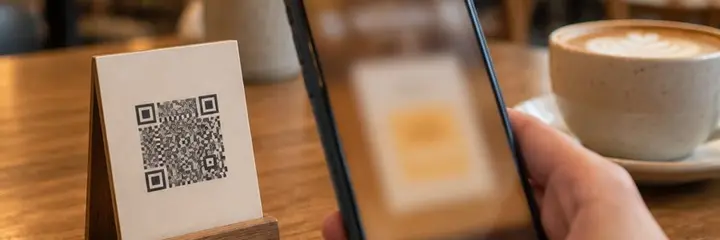


One app installed on the till computer. It pairs in a minute, connects your till to Sadakio and greets your guest on the second screen. Your till software stays exactly as it is.
For Windows 7, 10 and 11, free. A Sadakio account is required.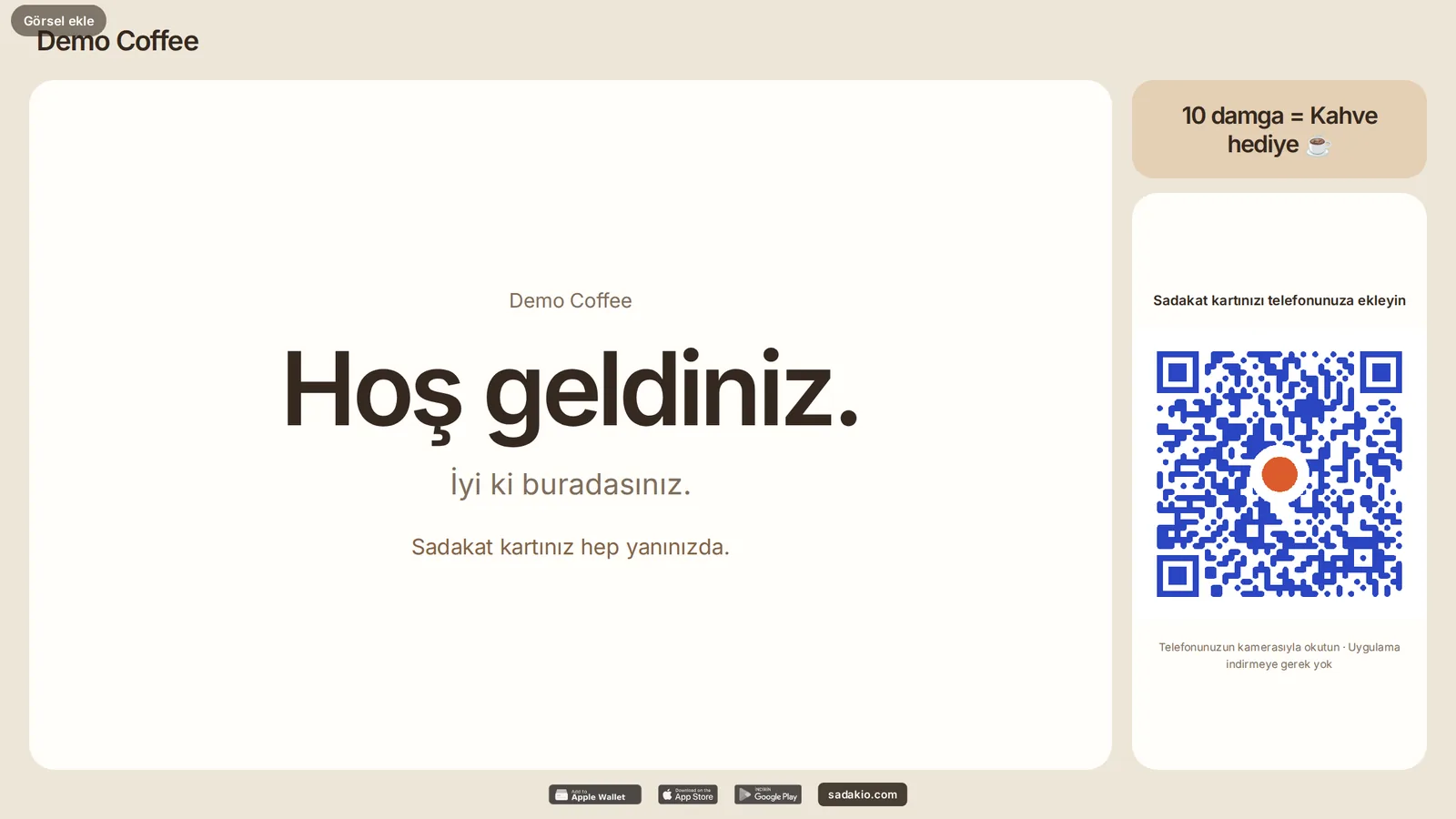
The Sadakio Till App (Sadakio Kasa) is a free till integration app installed on a Windows till computer. It connects your till to the Sadakio business panel and opens the customer display on the till's second screen. It does not replace your till software. It runs alongside it and does not write to its data. It is for cafés, coffee shops, restaurants and any small business with a Windows till.
No technician, no cables, no till settings. The app runs on the till computer, and you approve it on your phone.
It is installed once on the till computer, starts with Windows and runs quietly in the background.
The app shows a QR code. You scan it with your phone from the Sadakio panel and confirm which branch the till belongs to.
The till shows as “connected” in the panel. You can remove it from the list and revoke the connection whenever you like.
On the till's second monitor, a tablet on the counter or an old phone: your campaign images rotate, the guest scans the QR and gets their card in seconds. You change the images from your phone at any time.
Today: pairing, a secure connection and the customer display. Next: features that arrive without you opening the till.
The app downloads, verifies and switches to the new version by itself. If something goes wrong, it rolls back to the previous version. You do not open the till.
The payment at the till is matched with the scan at the counter, so you see what the guest bought.
Stock is deducted from the sale lines, and Kio lets you know when it runs low.
Quiet hours, the best-selling item, campaign suggestions: not a guess, but your till.
The Sadakio Till App is a free app installed on a Windows till computer. It connects your till to the Sadakio panel and opens the customer display on the till's second screen. It does not replace your till software, it runs alongside it.
No. The app runs alongside your existing till software and does not write to its settings or data. Your till stays exactly as it is.
It runs on Windows 7 SP1, Windows 10 and Windows 11. It needs .NET Framework 4.8, and the installer is about 3 MB.
Setup takes a few minutes. You run the file on the till computer, the app shows a QR code, and you scan and approve it with your phone from the Sadakio panel. Pairing takes about 30 seconds, and no technician is needed.
The app only talks to Sadakio outwards, over port 443, with signed messages. No port is opened on the till. The device key never leaves the till computer. The business owner approves the pairing with a single-use QR code and can revoke it from the panel at any time.
The app is free. You need a Sadakio business account to use it.
Adisyo connects to the Sadakio panel separately through its API (Settings, Till integration). The Till App is independent of that: you can install it alongside any till software for the customer display and the till connection.
The customer display is a screen that stays open on the till's second monitor, on a tablet at the counter or on an old phone. Your campaign images rotate, and the guest scans the QR and gets the loyalty card in seconds. You change the images from your phone.