




Customer display
your shop window facing the guest
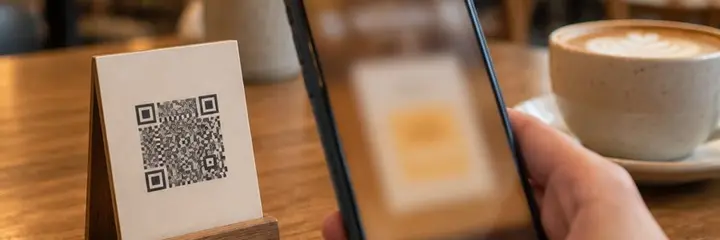
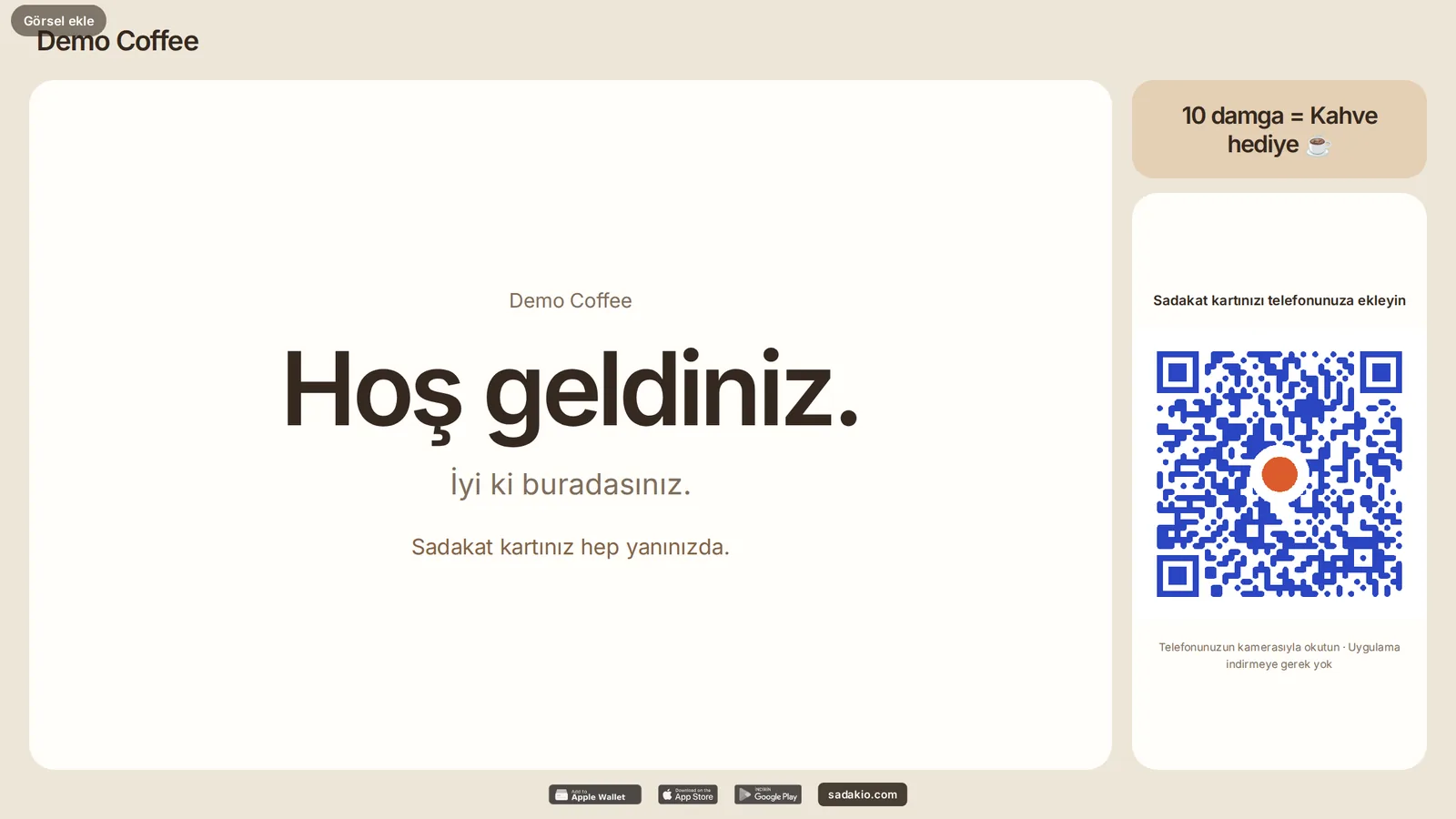
Sadakio's customer display turns the till's second monitor, a tablet or an old phone towards the guest. Your QR code, your reward and your campaign images sit right in front of guests waiting in the queue. It opens from a short link with no login.
Let guests get their card
while they queue
The customer display asks no extra work of you. Images come from your phone, the rest happens by itself.
Its own short link
The display opens at a short link starting with app.sadakio.com/e/. Nobody logs in to your panel on the shared till computer.
Images from your phone
You add or remove images on the QR display page in your panel. The display picks up the change by itself.
Campaigns join the rotation
Images from the latest campaigns you sent join the rotation too. Up to six images rotate with a soft transition.
What the QR opens
Loyalty card, Menu or None. If you choose None, the display shows only your images, full size and uncropped.
A big QR when there are no images
If you have not added any images, the display shows a big QR code in your brand colour, together with your reward.
If the connection drops
If the internet goes down briefly, the display keeps showing what it was showing and updates itself when the connection comes back.
How do you set up the customer display?
Get the link
Open the QR display page in the panel. Your display's short link is shown there.
Open it on a screen
Open the link full screen on the till's second monitor, a tablet or a phone.
Manage it from your phone
Add images and choose what the QR opens. The display picks up every change by itself.
If you use a Windows till, the Sadakio Till App opens the customer display on the second monitor by itself.
Questions about the customer display
Which devices does the customer display run on?
⌄
The customer display runs on any screen with a browser: the till's second monitor, a tablet on the counter or an old phone. On Windows tills, the Sadakio Till App opens the customer display on the second monitor.
Do I have to log in to my panel on the till computer?
⌄
No. The display opens at a short link starting with app.sadakio.com/e/. You find the link on the QR display page in your panel. Nobody gets into your account on the shared till computer.
How do I change the images?
⌄
You add or remove images from your phone, on the QR display page in your panel. The customer display picks up the change by itself, and you do not need to restart it.
What does the QR code on the display open?
⌄
You choose: Loyalty card, Menu or None. When None is selected, the display shows only your images, full size.
What happens if the internet drops briefly?
⌄
The display keeps showing what it was showing at that moment. When the connection comes back it updates again, and nobody needs to do anything.
Related pages
Turn on the screen next to your till
today
14 days free, +30 days after your first 20 stamps, no card needed.